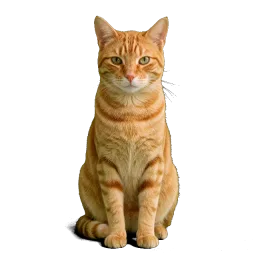
Milo

Animated desktop pet for Mac & Windows
A quiet feline companion on your screen—it plays when you click, naps while you focus, and keeps you company all day. Free on Mac and Windows.
Free to download · Mac & Windows · No account required
How the desktop cat behaves
The previews on this page use the same animation clips as the Desktop Cat app—happy bursts, drag, look-around, and sleepy idle loops—so you see real behavior, not mockups.
Preset cats
Download the app and bring one of these cats onto your screen.
Milo
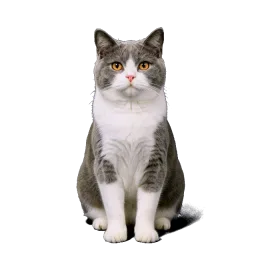
Misty
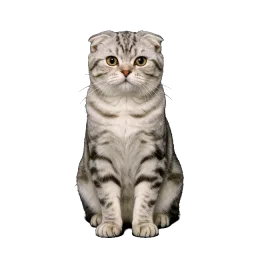
Bonnie
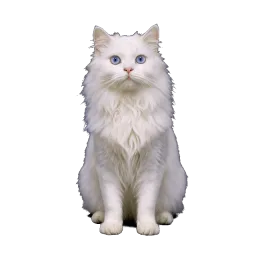
Persia
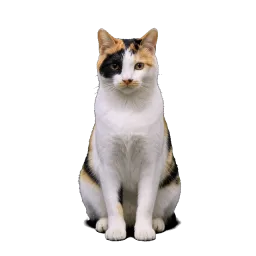
Patches
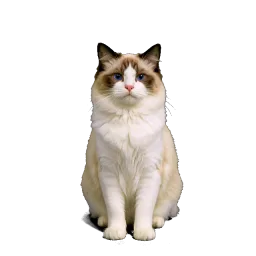
Silk
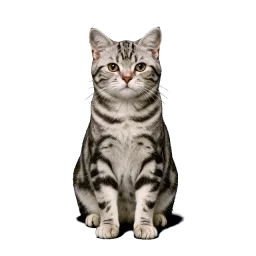
Cheddar
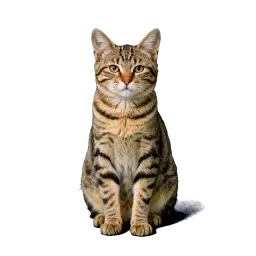
Marbles
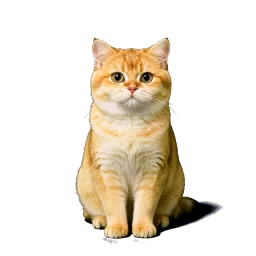
Saffron

Pudge
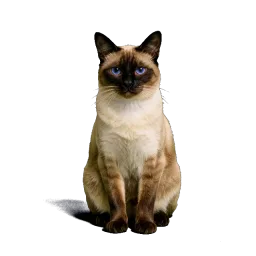
Cleo
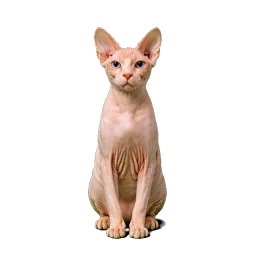
Peach
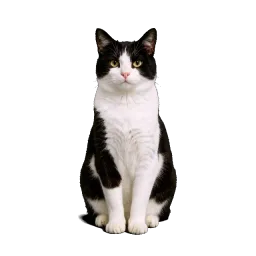
Oreo
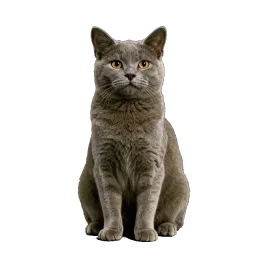
Slate
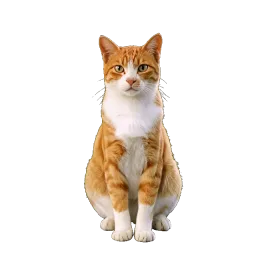
Marmalade
Typing
While you type, your desktop cat keeps you company at the keyboard and taps along with you.
Hide and seek
Your desktop cat loves hide and seek—ducking away for a moment, then peeking back to brighten your workday.
Real stills from the app—each row is an actual clip from Desktop Cat, not stock art.
01 · Idle
A looping idle clip keeps your desk warm while you focus.

02 · Look around
Every so often the cat lifts its head and glances around your desk, ears alert.

03 · Typing
While you type, your cat keeps you company and taps along at the keyboard.

04 · Happy
Double-click to cycle through happy animations, just like in the app.
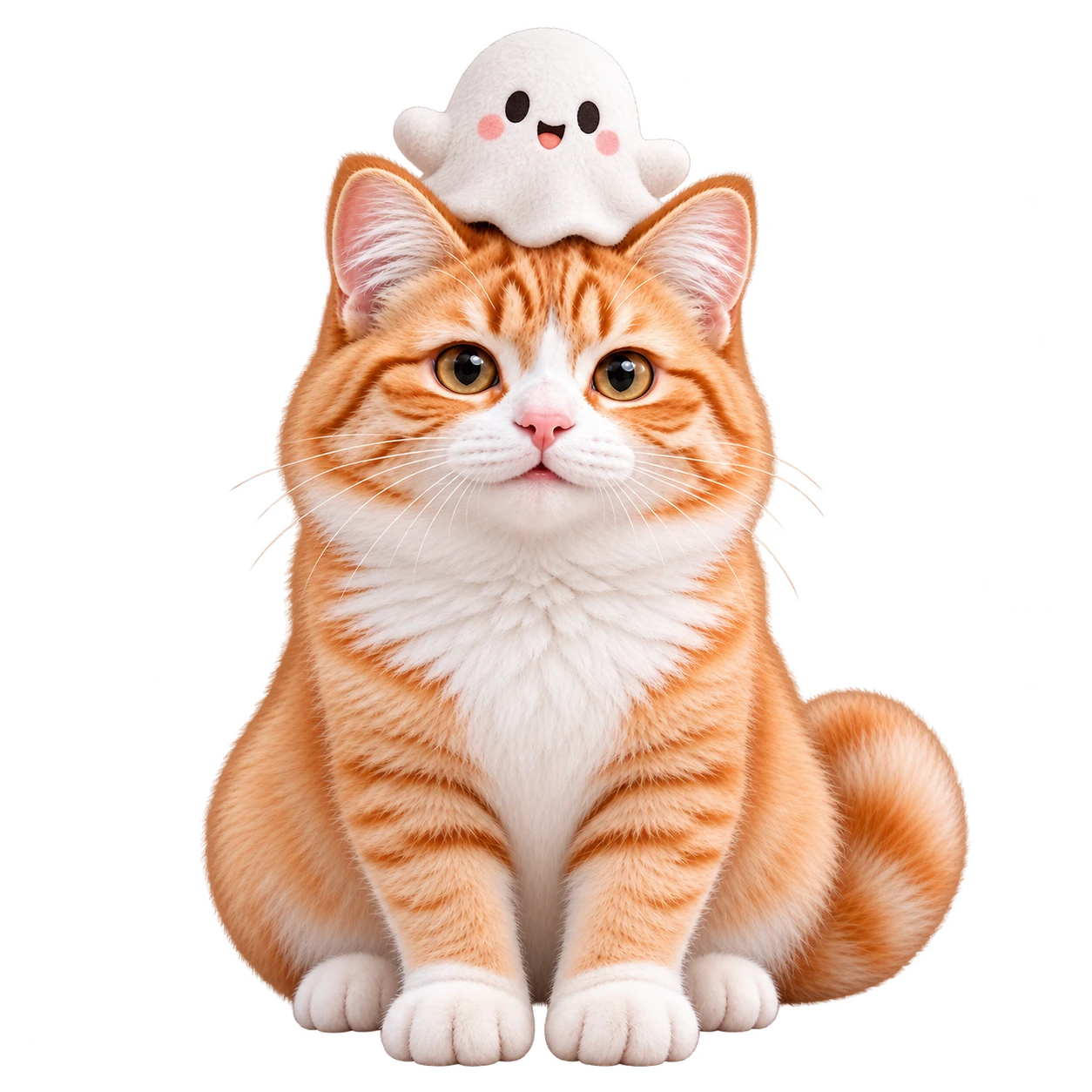
05 · Drag
Pick up the cat and place it anywhere on your desktop.
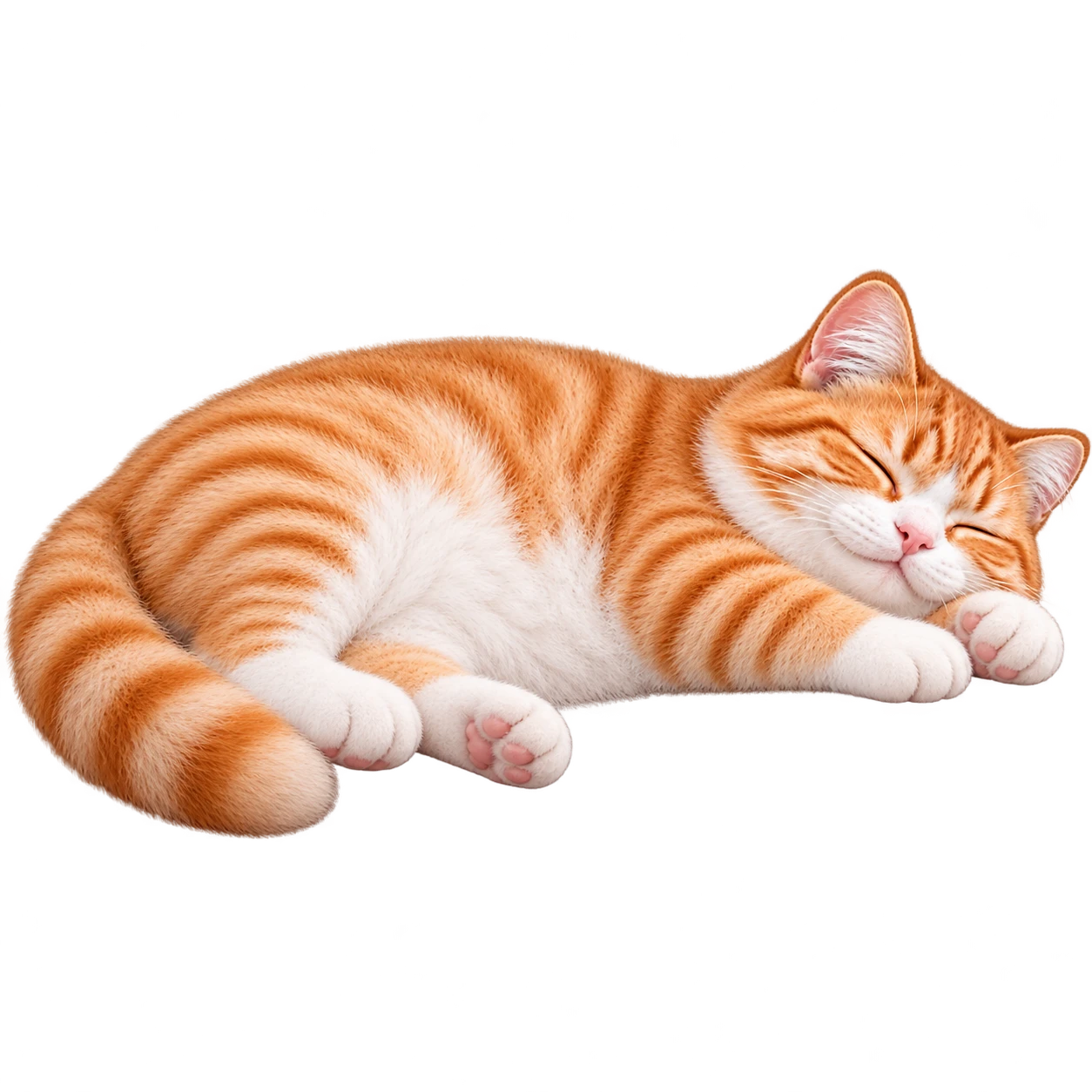
06 · Sleep
After you step away, the cat dozes off and wakes when you return.

07 · Hide
Hide the cat from the pet menu during a meeting or screen share, then call it back when you are done.

08 · Hide and seek
Your cat ducks away, then peeks back from the edge—a little game while you work.
Made for focused screens
See how Desktop Cat fits into common desk setups.
Keep the cat near the edge of your editor or canvas. It plays now and then and rests while you read or debug.
Use optional stretch and water reminders between study or focus sessions.
Move the cat to a second monitor, resize it for a laptop, or hide it before a presentation.
Setup
Three short steps—pick your OS, install once, then place the cat where it feels natural.
In the download section, pick macOS or Windows. The Mac download works on both Apple silicon and Intel Macs.
Run the DMG or setup file, then launch the app from Applications or the Start menu. Approve the first-run prompt if macOS or Windows asks.
Move the cat to a corner, resize it, and explore the optional tools—or choose Make My Own in the pet menu to turn your own cat into a desktop pet.
Download
Select the version that matches your computer. When an installer is available, it downloads immediately—the standard cat does not require payment.
M1/M2/M3 and newer · macOS 10.15+
DeskPet-2.3.5-arm64.dmg
Intel Macs · macOS 10.15+
DeskPet-2.3.5-x64.dmg
Windows 10/11
DesktopCat-Setup.exe
Lightweight by design
The desktop companion behaves like a small utility rather than a full game. It is simple to place, easy to pause, and designed to remain out of the way while other apps have your attention.
Core character animation and on-screen controls run locally after installation. Normal use does not require an open browser tab or a permanent connection.
Resize, reposition, pause, or quit from familiar desktop controls. You decide when the pet is active and where it has room to wander.
The cat is designed to share space with code, documents, calls, and study material without covering the controls you use most.
Need help installing Desktop Cat? Contact
Questions about your desk pet
Stay in the loop
Occasional notes on new animations and Mac or Windows releases.